
Description
This guide explains how to create a log file from a device using the Android Debug Bridge (ADB) tool.
Requirements
- Android Platform Tools (ADB)
- Workstation (PC or laptop) on the same network as the device
- Port 5555 open between the device and the workstation
Connecting with ADB
- Download the Android Platform Tools from: https://developer.android.com/tools/releases/platform-tools
Please note that ADB is already integrated into the TEOS On-Premise version. Therefore, this step is not required when using TEOS On-Premise. The adb.exe file is located within the TEOS installation folder: C:\Program Files\TEOS Manage\www\backbone\adb - Extract the downloaded file to a folder. By default, this will be:
C:\Users\Administrator\Downloads\platform-tools-latest-windows\platform-tools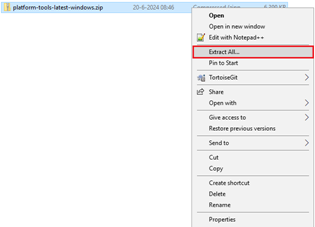
- Open a Command Prompt window (CMD).
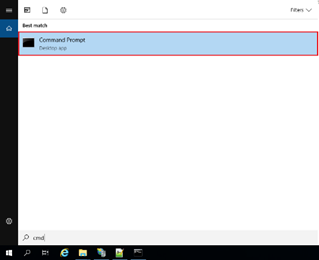
- In the Command Prompt window, type the following to start the ADB process:
cd (the folder that contains the adb.exe file)
adb devices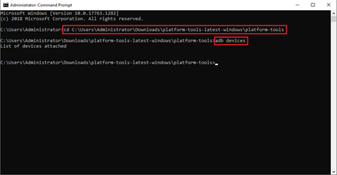
- Execute the following command to connect to a device:
adb connect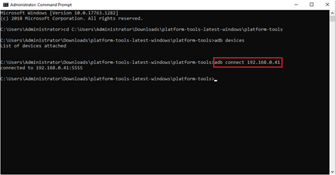
- Once the device is connected, use the following command to start creating a log file:
adb -s logcat > filename.txt
The file name can be anything, as long as there are no spaces between words or numbers.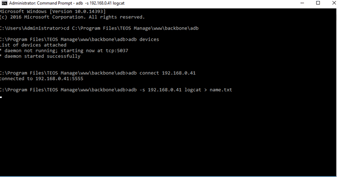
- To stop the log file from running, press CTRL + C on your keyboard.
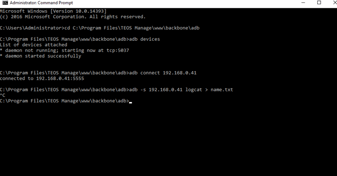
- The log file can be found in the ADB folder.

You have now successfully created a log file using ADB.