
Description
This guide explains how to enable ADB/USB debugging, which is required to connect to a device remotely using ADB.
In this manual, a Sony Bravia will be used as an example. The location of settings may differ on other devices.
Requirements
- Access to the device
- Remote control for the device
How to enable ADB/USB debugging
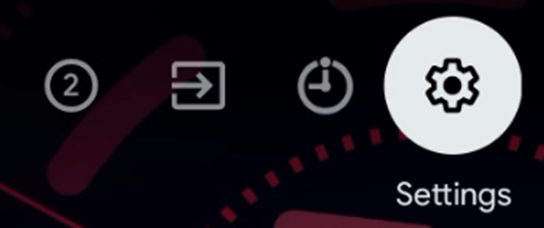
- Using the remote, navigate to the settings of the device.
- Under “System”, there is an option called “About”; this displays the information of the device.

- In this menu, the build number of the device is displayed. Click this seven times to enable “Developer options”.

- Now return and locate “Developer options”.

- In this menu, there is an option called “ADB debugging” or “USB debugging”. Enable this option.

- Debugging is now enabled on the device. When connecting to the device using ADB, a pop-up will appear asking to approve the connection. This needs to be accepted to allow the connection.