
Description
This guide will describe the technical specifications of TEOS Connect.
Network requirements
Please check the network architecture and verify the ports to open between TEOS Connect Receiver and TEOS Connect Client (from Android, macOS and Windows).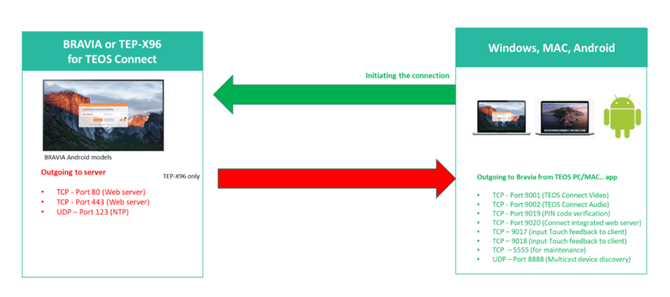
Licensing
When opening TEOS Connect Receiver for the first time, you will need to enter the following information: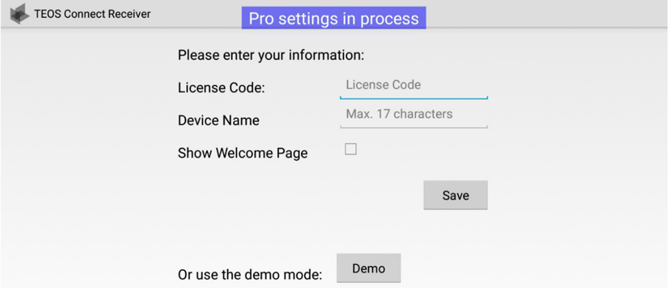
1. Device Name; name of the device for the auto-discovery from the TEOS Connect Client app.
2. Licence Code; received by email and used to register the device (using model name and serial number).
3. Show Welcome page; to enable the option to show the welcome page.
4. Save; to keep the information and register the licence.
5. Demo; you can use the demo mode, which enables TEOS Connect Receiver for a 30-day trial.
Assign licence from TEOS Manage
If there are TEOS Connect licences available in TEOS Manage, you can assign them through the web interface.
Navigate to “Administration > AV Devices” and select the device you want to push a TEOS Connect licence to.
Select “Mirroring Settings” and select “Use TEOS Connect license”.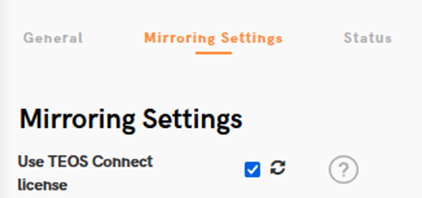
Select the button to the right of the checkbox to push the licence to the device.
You have now assigned a TEOS Connect licence from TEOS Manage.