
Description
This guide explains how to connect to a device using ADB.
Requirements
- A laptop or PC with the ability to run commands
- Be on the same network as the device
- The IP address of the device
How to connect to a device using ADB
- Install ADB Platform Tools: https://developer.android.com/tools/releases/platform-tools and select the version based on your operating system.
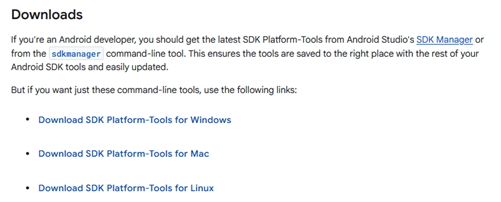
- Extract the folder to a desired location. Inside this folder, there should be a file called “adb.exe”.

- Use the navigation bar to open CMD (Command Prompt) by typing “CMD” in it.
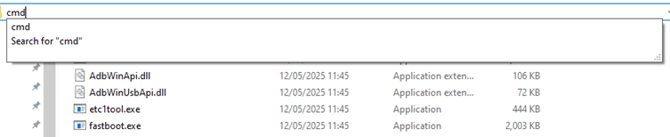
Press “Enter”. This will open CMD in the current folder, as we need to execute commands from this directory. - In CMD, type “adb devices” to test functionality. If it returns the following message:

It means it is functional. - To connect to a device, use the following command: “adb connect ”. Replace with the IP of the device.

- If the device refuses the connection, then ADB/USB debugging is not enabled on the device. See the following documentation to enable ADB/USB debugging:
How to enable ADB/USB debugging - After completing these steps, you are connected to the device.